
Source: MasjidFrame Appliance User Guide on GitHub. This copy covers v1.6.7.
Contents
- Get started on the appliance
- Read the Board
- Control the appliance by touch
- Open the full controls on another device
- Listen to a masjid and Radio
- Update the appliance
- Troubleshooting
MasjidFrame brings live masjid audio, Islamic radio and a rotating MasjidBoard display into one home appliance. This guide describes v1.6.7 and starts with the portrait touchscreen appliance. Your appliance may have Board, Listen, or both enabled; controls for an unavailable component will not appear.
Get started on the appliance
- Connect the appliance to power and wait for the welcome screen. On a new portrait appliance, setup opens automatically.
- Choose a 2.4 GHz Wi-Fi network. For a network that is not listed, choose Add hidden network, enter its exact name and select its security type. Enter the password with the on-screen keyboard, then select Connect.
- Choose your country, province or region, town or city, and time zone. Select Find masjids, choose a MasjidBoard, then finish setup. If the masjid catalogue is temporarily unavailable, use the on-screen retry or Set up Board later option.
- The appliance opens the Board. Subsequent boots go straight to the configured display. If you chose Set up Board later, it shows MasjidBoard is not configured, including after a reboot. Select Set up MasjidBoard to return directly to Step 2; you do not need to repeat Wi-Fi setup.
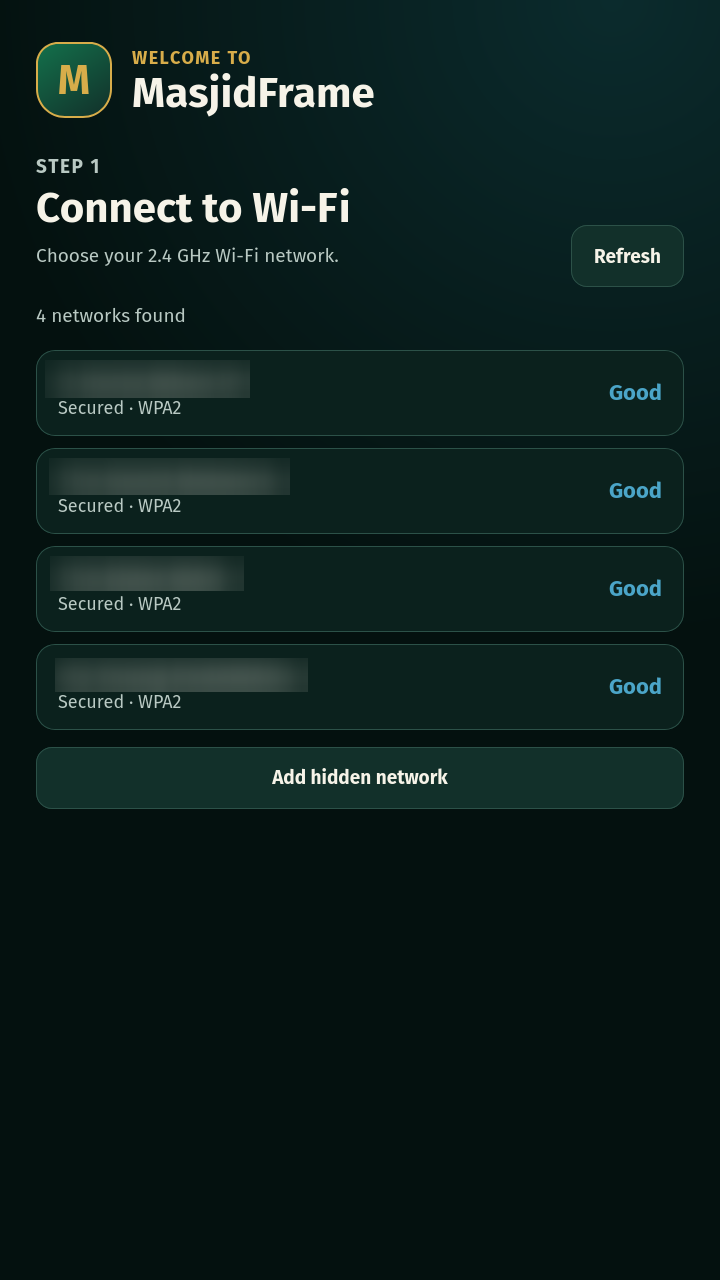
Wi-Fi setup — 720 × 1280 appliance browser preview. Network names are blurred for privacy.
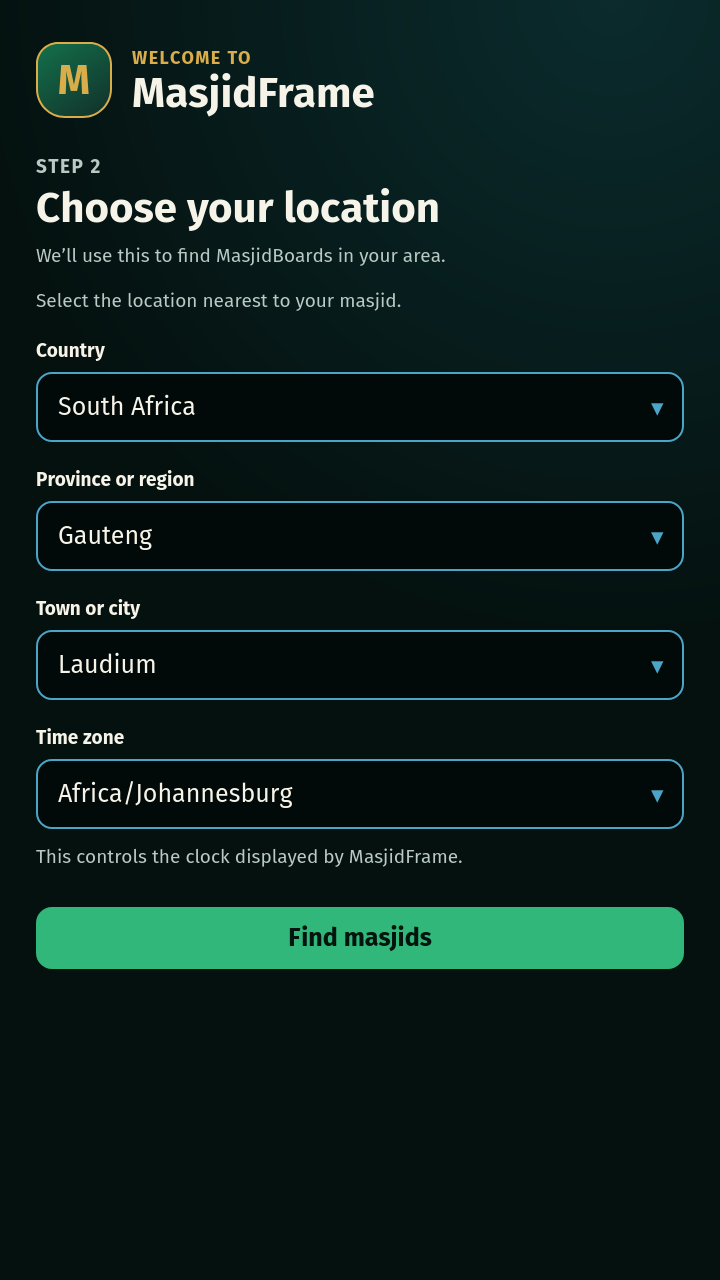
Location setup — 720 × 1280 appliance browser preview, before selecting Find masjids.
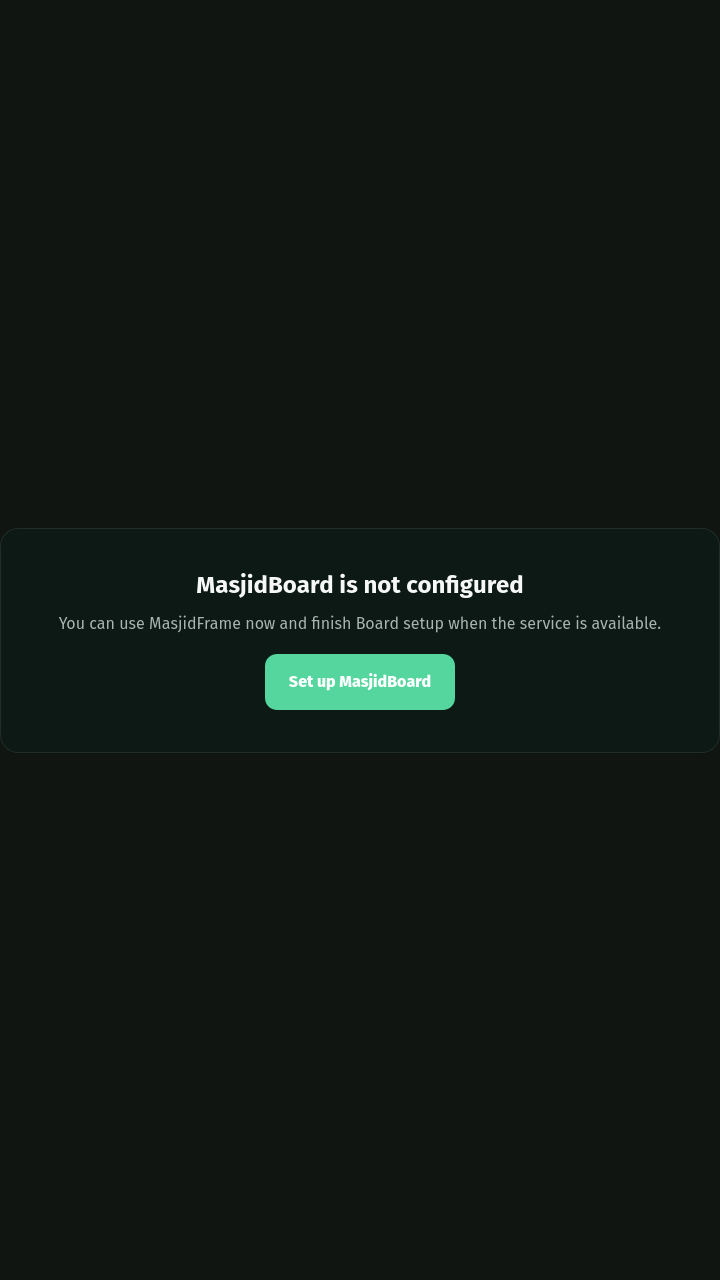
Deferred Board setup — staged 720 × 1280 browser preview of the application’s existing message. The message was temporarily shown in the browser; saved masjid selections were unchanged.
After connecting, the screen gives an IP address and, where your network supplies one, a network address. Keep either address for opening the full controls from your phone or computer. You can find them again under Network in the touchscreen controls. The appliance and your phone or computer must be able to reach each other on the local network.
Read the Board
The Board rotates through prayer times, a countdown to the next event and available notices for your selected masjids. The first selected masjid supplies shared Daily Times. On the portrait display, each selected masjid gets its own Salaah Times slide, followed by its notices. Shared Ayah, Hadith, Sunnah and Economic Indicator pages appear after the masjid-specific content, when enabled.
Some items appear only when the source masjid publishes them, including Jumu’ah details, programmes, funerals and Salaah changes. A notice shows its source masjid. The optional Dua after Adhan appears for five minutes after a listed Adhan for the first selected masjid; it is off by default. The Board can keep showing the last good timetable if a source is temporarily unavailable. Use Board → Status in the Web UI to check whether data is current or cached.
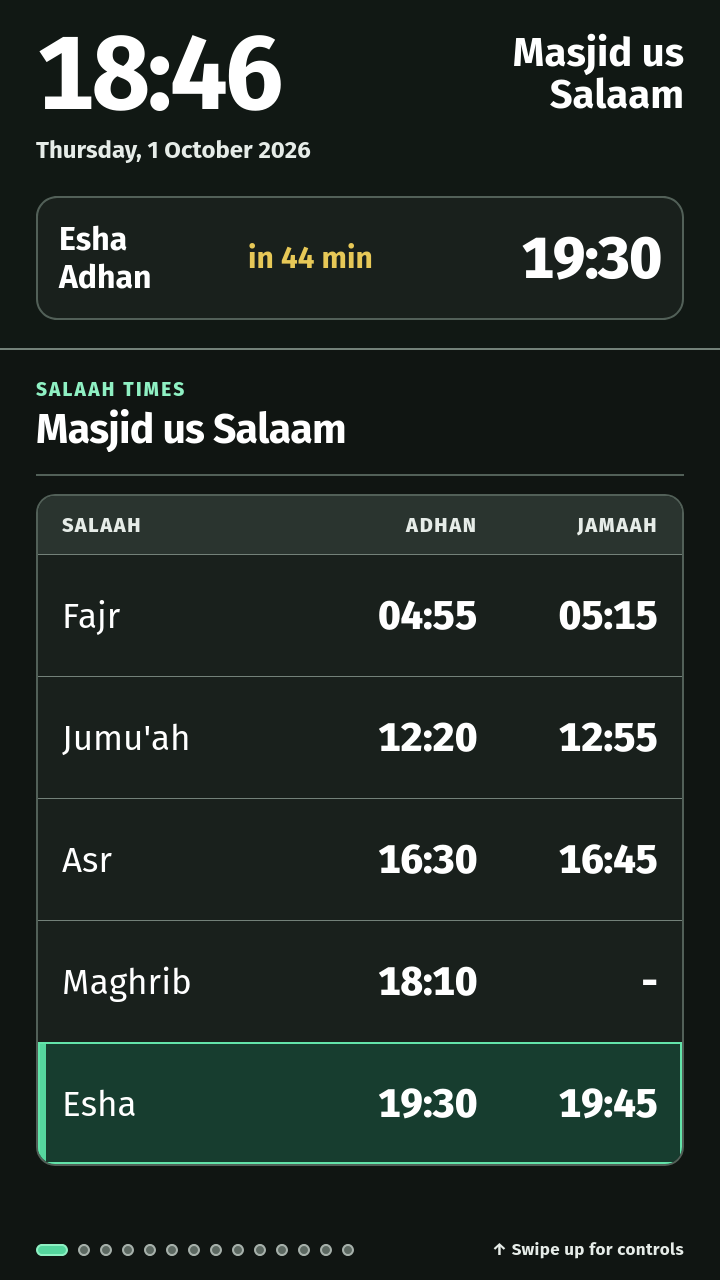
Salaah Times — 720 × 1280 appliance browser preview.
Control the appliance by touch
On the 720 × 1280 portrait display, swiping down from the top opens Quick Settings. Adjust display brightness and volume, or choose Scheduled Play, Play Now or Stop Radio. Swipe up from the bottom to open the main control sheet. The Board pauses its slide rotation while a sheet is open and resumes when you close it; idle sheets close after one minute. Close a sheet with its × button, its handle or a tap outside it.
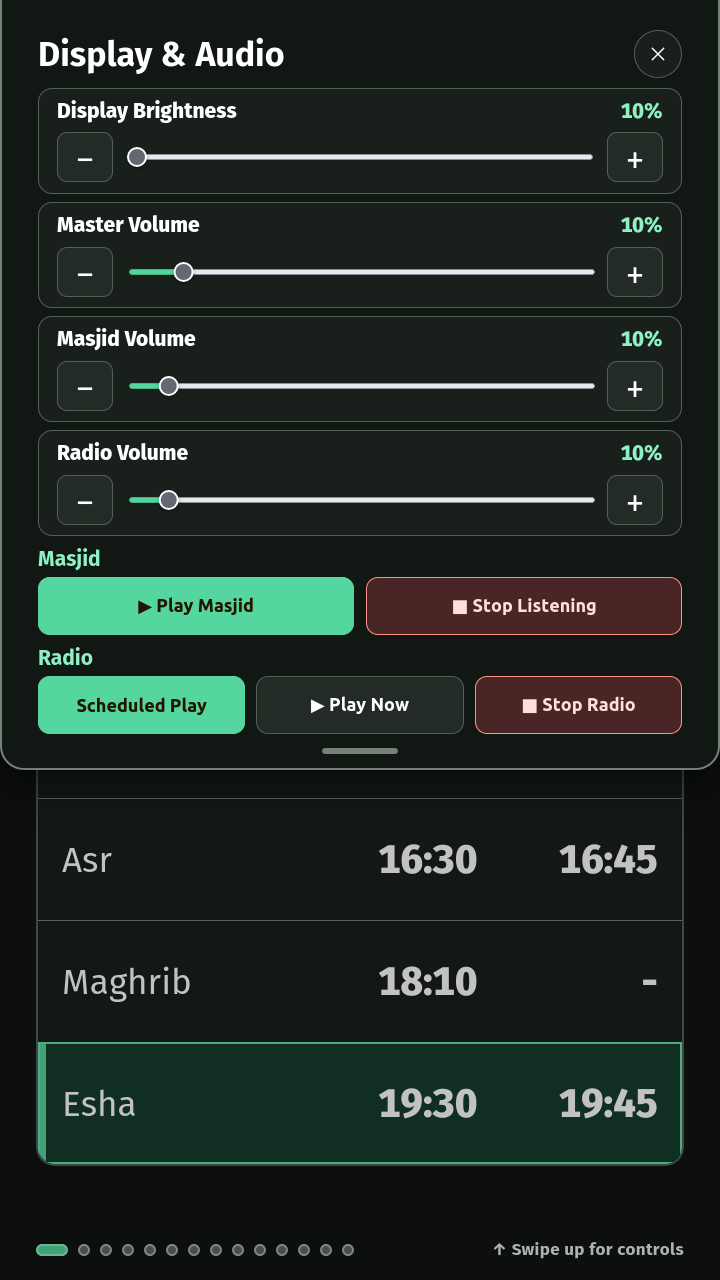
Quick Settings — 720 × 1280 appliance browser preview.
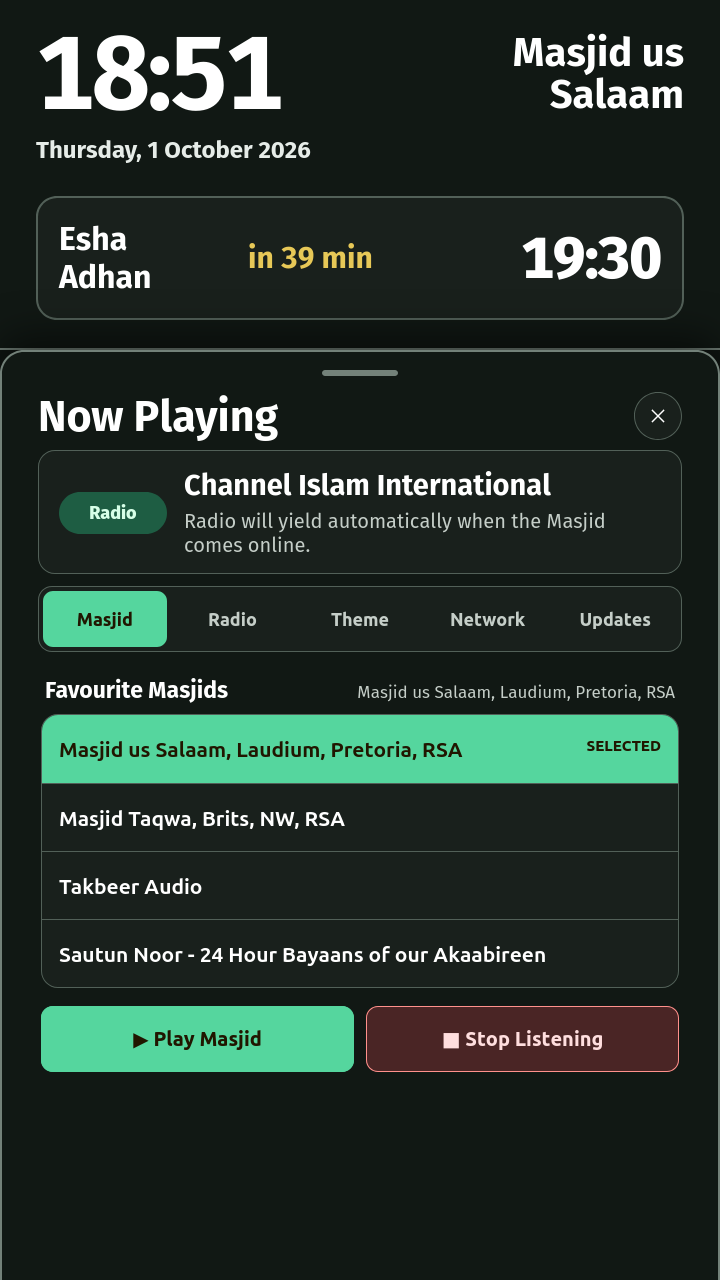
Main control sheet, Masjid tab — 720 × 1280 appliance browser preview.
| Main control tab | What you can do |
|---|---|
| Masjid | Choose a favourite masjid, play it, or stop Listen. Add favourites in the Web UI first. |
| Radio | Choose a station, return to scheduled playback, play it temporarily, or stop Radio. |
| Theme | Choose and save a Board colour theme. |
| Network | View the appliance’s access address or change Wi-Fi. |
| Updates | Check for releases, approve or postpone an offered release, and install a verified update now. |
To change Wi-Fi later, open Network → Change Wi-Fi network. Opening or leaving the setup screen does not disconnect the existing network; a new connection takes effect after it succeeds. Use Back to board if you decide to keep the current connection.
Open the full controls on another device
On a phone, tablet or computer on the same reachable network, enter the address shown on the appliance, for example:
http://192.168.1.25:8080The number above is an example; use your appliance’s address. This is the MasjidFrame Web UI. Its Listen, Board and Updates pages offer more settings than the touch controls. You may close the browser afterward; the appliance keeps working. The Web UI’s System, Light or Dark appearance is separate from the Board colour theme.
Choose which masjids appear on the Board
Open Board → Masjids. Choose the location scope and select Save Locations. Search the resulting list, choose one to three masjids, and place them in the desired order. Adding, removing and reordering selected masjids saves automatically. A selected masjid can have its detailed Friday Jumu’ah schedule enabled or disabled independently when source data is available.
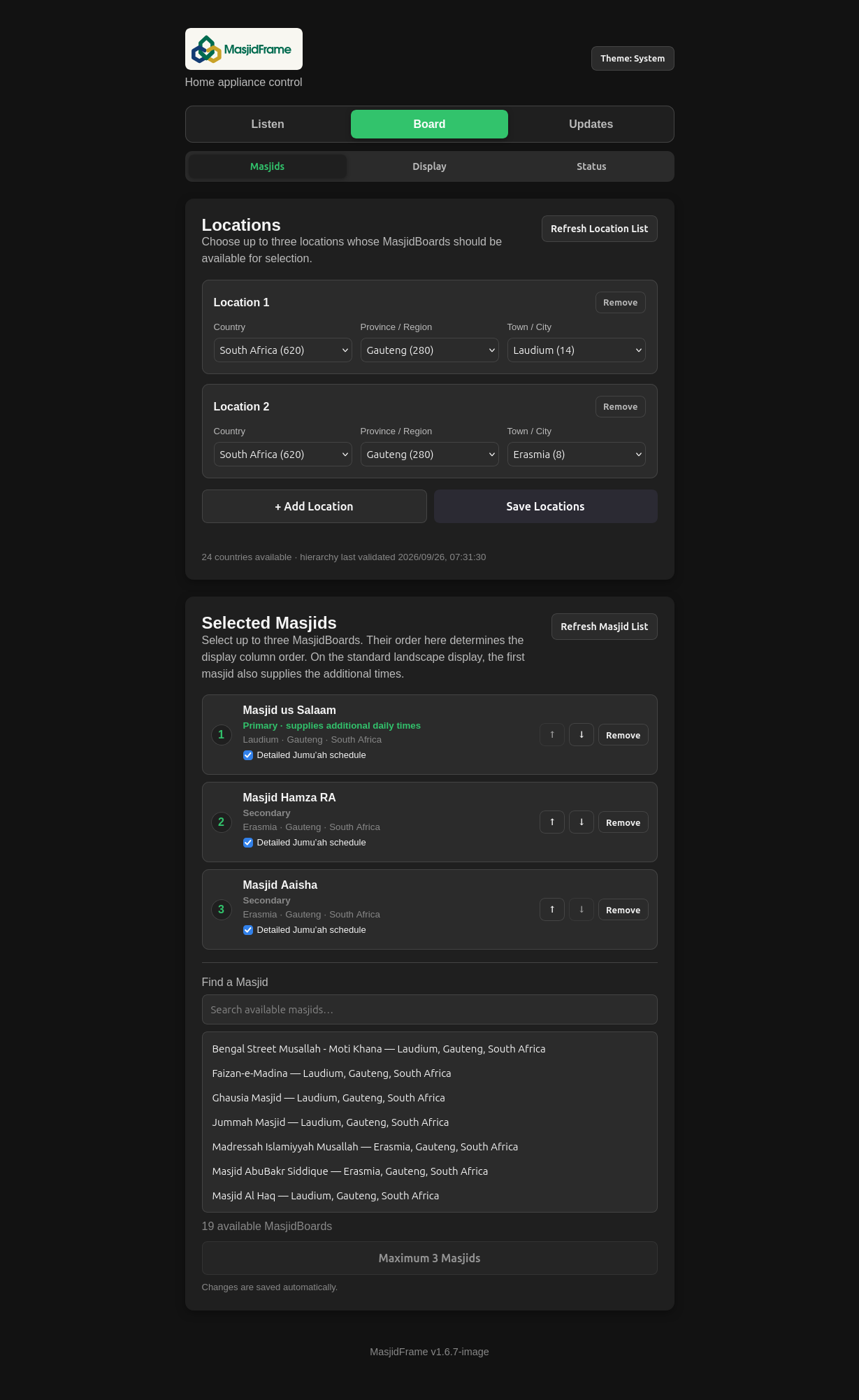
Board → Masjids in the Web UI.
Choose the display content
Open Board → Display. Select a theme, a slide duration from 5 to 60 seconds, and which shared content to show: Daily Ayah, Daily Hadith, Daily Sunnah, Islamic Economic Indicators and Dua after Adhan. Changes are saved automatically. The physical display profile is selected from the attached hardware; the browser preview does not change the attached screen. With Raspberry Pi Touch Display 2 detected, use Preview MasjidFrame Display; the generic Open Display Preview button is hidden.
MasjidFrame checks enabled shared Ayah, Hadith and Sunnah content with its normal notice refresh, usually every 30 minutes, and continues showing the last good content during a source outage. A source may leave an item unchanged across multiple checks.
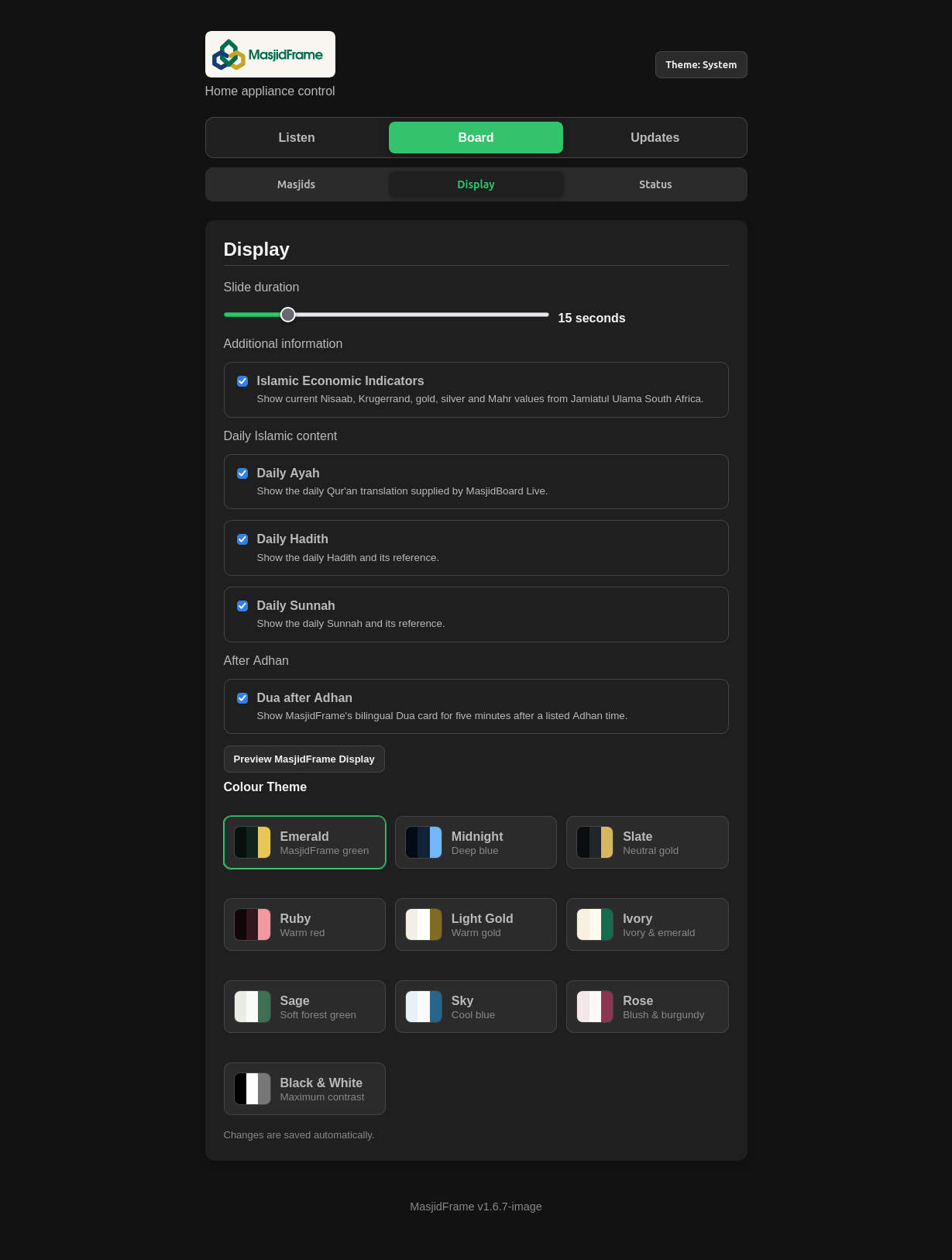
Board → Display in the Web UI.
Check the Board’s data
Open Board → Status to see whether each selected timetable is Current, Stale or Unavailable. Select Refresh Timetables to request a new check. An upstream failure may prevent a refresh even when the cached Board remains visible.
Listen to a masjid and Radio
The selected masjid always takes priority. If it begins broadcasting while Radio is playing, MasjidFrame switches to the masjid. When the masjid goes offline, Radio can return according to its schedule and resume delay. Now Playing tells you whether the appliance is playing a masjid, playing Radio, waiting or stopped.
In Listen → Masjid, choose your primary masjid, add frequently used masjids to Favourites and arrange them for the touchscreen. Selecting a masjid saves the selection. Use Start Listening in the Web UI or Play Masjid on the touchscreen to start Listen. Use Stop in the Web UI or Stop Listening on the touchscreen to stop all Listen audio. The Board continues displaying content.
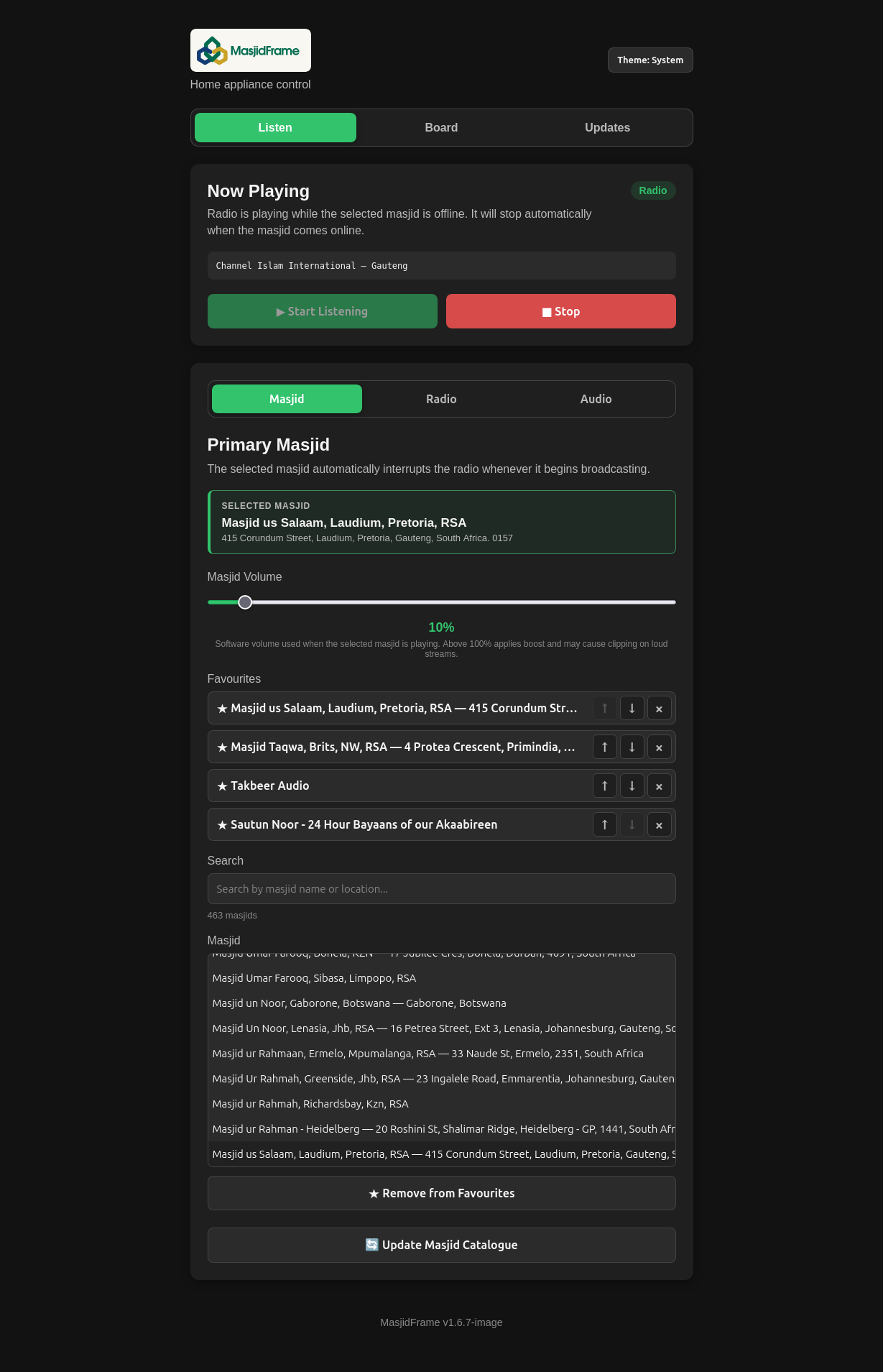
Listen → Masjid in the Web UI.
In Listen → Radio, choose a station and select one of these modes. Play on Schedule and Play Now enable Radio. If Listen is stopped, also select Start Listening in the Web UI; touchscreen Radio actions start Listen automatically. The touchscreen calls Play on Schedule Scheduled Play.
| Mode | Effect |
|---|---|
| Play on Schedule | Radio plays when permitted by its daily times, the masjid’s offline state and the resume delay. Disable the daily time limit to allow Radio all day. |
| Play Now | Temporarily plays Radio while the masjid is offline, even during quiet time or a pending resume delay. The next relevant event returns to scheduled behaviour. |
| Stop Radio | Keeps Radio off until you select another mode. The masjid can still play. |
The Radio resume delay is adjustable from 1 to 30 minutes. Under Daily Radio hours, enable Limit Radio to these hours, set Radio starts at and Radio stops at, then select Save schedule. Times use the appliance’s configured time zone. A daily Radio window can cross midnight. These settings affect Radio only; a live masjid remains available at any time. The separate Masjid and Radio volume controls range from 0% to 150%; values above 100% amplify software audio and can distort loud sources.
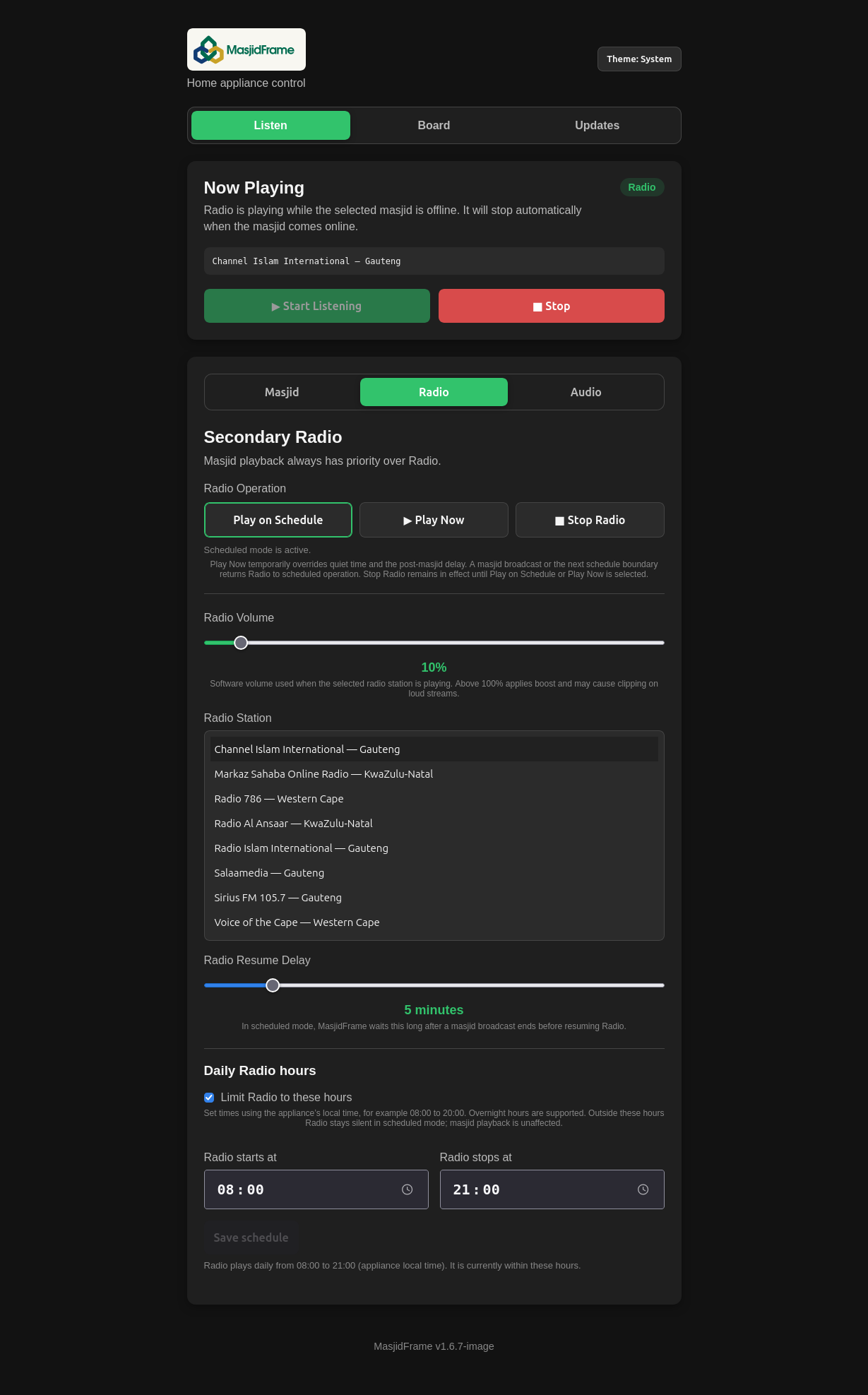
Listen → Radio in the Web UI.
In Listen → Audio, choose the sound output and use Refresh Devices after connecting USB audio. On first run, MasjidFrame automatically selects MasjidFrame Built-In Audio when the supported built-in USB audio device is detected. An existing saved output selection is preserved. Master Volume is available only when the output exposes a controllable hardware mixer; the Masjid and Radio volume controls still work without one. Saved output and normal Listen settings survive a restart or update. Play Now is temporary and should not be relied on after a reboot.
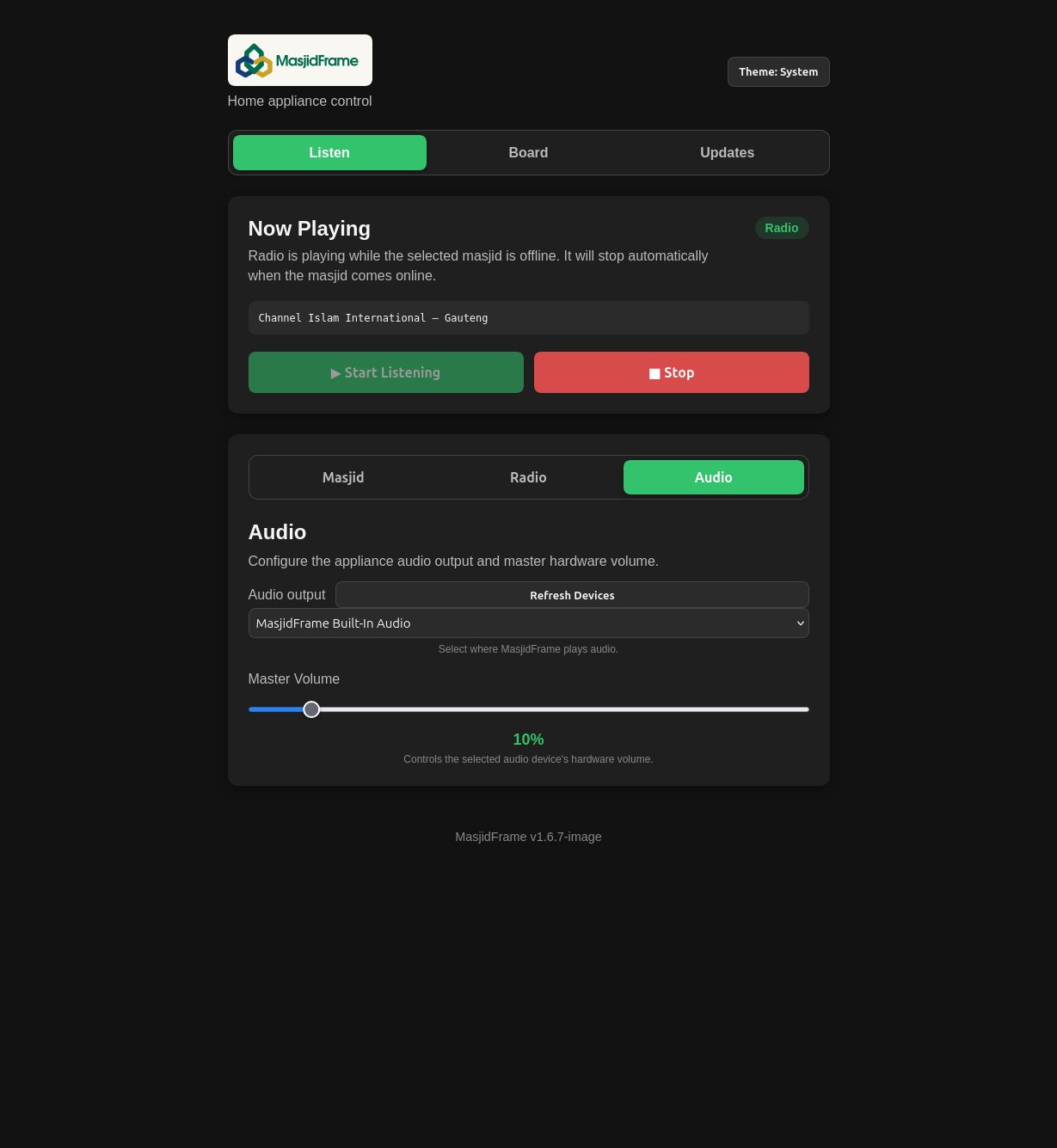
Listen → Audio in the Web UI.
Common setups
- Radio during the day: Select Play on Schedule, enable Limit Radio to these hours, set the start and stop times, and select Save schedule. Select Start Listening if Listen is stopped.
- Masjid only: Select Stop Radio, then Start Listening or Play Masjid.
- Silence the appliance: Select Stop in the Web UI or Stop Listening on the touchscreen. The Board continues displaying content if enabled.
Update the appliance
MasjidFrame checks for signed stable releases automatically, normally once a week. You can also open Updates on the touchscreen or in the Web UI and select Check now. When an update is offered, choose Approve update to allow the normal scheduled installation, or Remind me in 7 days to defer your decision. Approved updates normally install between 23:00 and 03:00 in the appliance’s configured time zone, waiting while audio is active and avoiding the 15 minutes before or after a listed Adhan. An offered update is automatically approved 30 days after this appliance first detects it; reminders do not extend that deadline. A verified update can also be started with Install now. That action may interrupt audio and restart the appliance; confirm the on-screen prompt when ready.
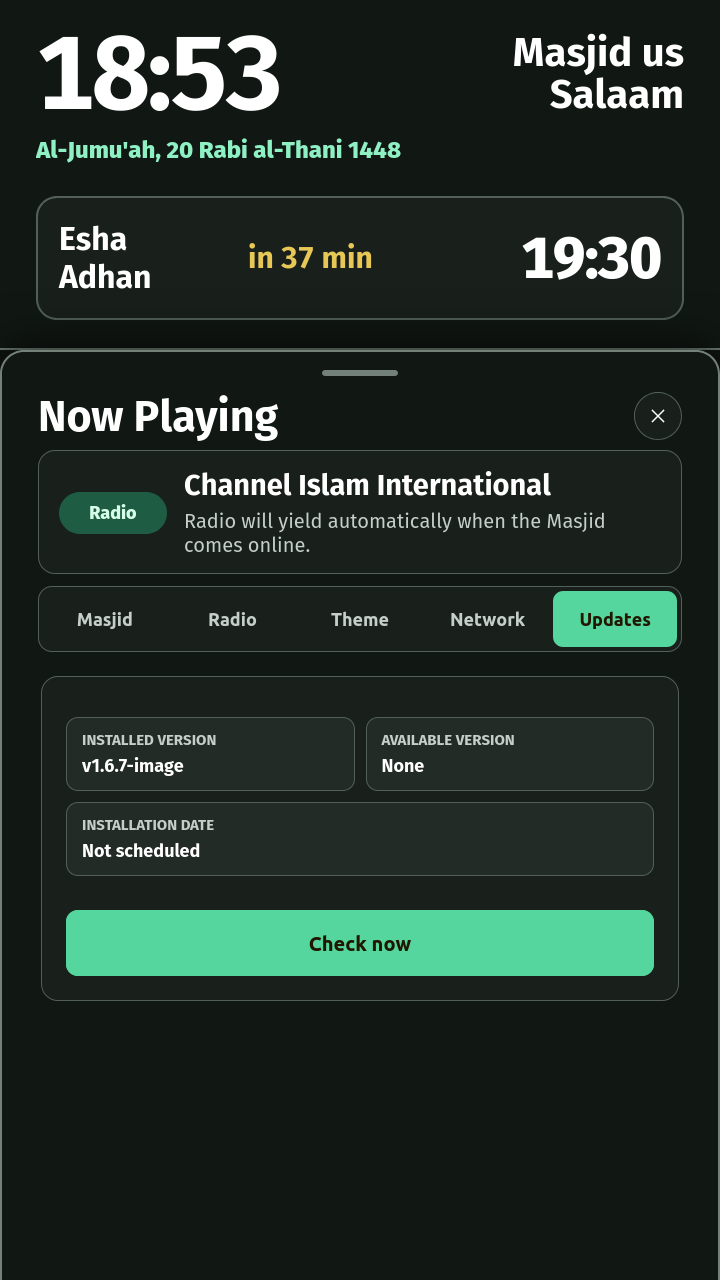
Updates on the touchscreen — 720 × 1280 appliance browser preview.
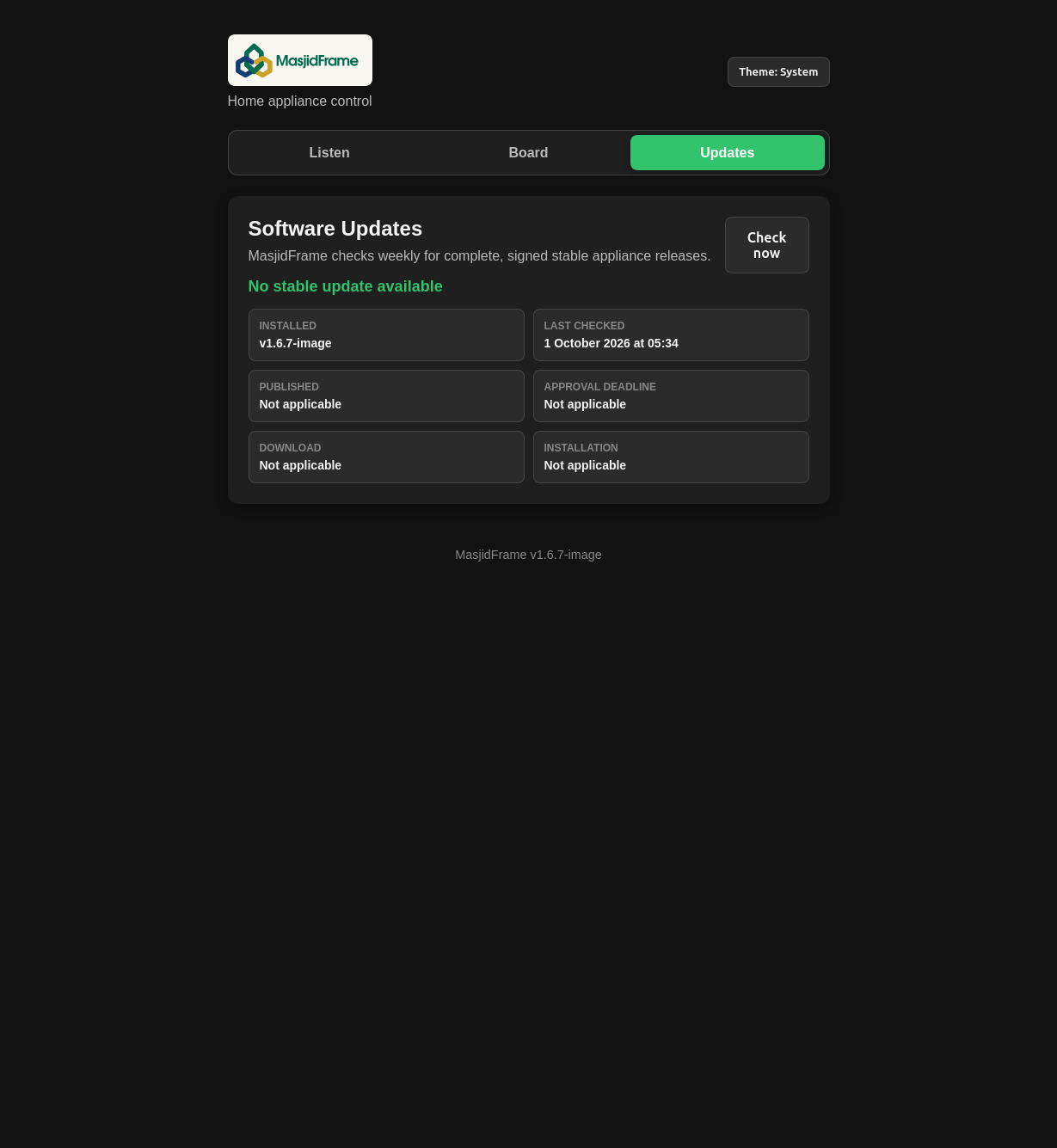
Updates in the Web UI.
During an update, the display or browser may briefly lose its connection while the appliance restarts. Leave power connected. The appliance checks its health after boot and confirms the new system after its probation period; a failed trial can roll back automatically. The Installed version on the Updates page or the version in the Web UI identifies the software now running. After a successful update, an automatic check can clear the old installation entry because that release is no longer an available update; this does not mean it was rolled back.
Troubleshooting
| Symptom | First thing to check |
|---|---|
| The Board is blank | Confirm power and the display connection. Restart the appliance if needed. From the Web UI, check Board → Status. |
| MasjidBoard is not configured | Select Set up MasjidBoard to resume Step 2. If locations cannot load, use Try again or Set up Board later. A catalogue loading failure can occur even when an individual online board is reachable. |
| Prayer times look old | Check Board → Status and select Refresh Timetables. Cached data can remain on screen during a source outage. |
| No masjid audio | Check Now Playing, select Start Listening if stopped, and check the selected masjid and the Listen → Audio output. A masjid that is offline cannot play. |
| Radio does not start | Check that Listen is running, select Play on Schedule, and check daily Radio times and the post-masjid resume countdown. Use Play Now for a temporary override. |
| Master Volume is unavailable | The chosen output may have no supported hardware mixer. Adjust the separate Masjid and Radio volumes or your speakers’ own control. |
| The phone cannot open the Web UI | Read the current address under Network, and confirm your phone can reach the appliance on the same local network. Guest Wi-Fi isolation can block access. |
| The touchscreen controls do not open | On the portrait appliance, swipe from the top for Quick Settings or from the bottom for the main controls. |
| An update seems stuck | Allow time for downloading, installation, reboot and probation. Reopen Updates after the appliance is reachable again. |
For installation, advanced diagnostics and supported systems, see the Installation Guide. MasjidFrame depends on external live streams and timetable providers; their content and availability vary.